It has been almost five years since I last posted anything here. My last post was in November 2021, and looking back now, that feels like a completely different point in my life.
At the time, I was working as an Application Analyst. In 2022, I moved into an AWS Ecosystem Team Lead role, and by 2025 I had moved into my current position as an Infrastructure as Code Technical Manager and SME. My work has changed quite a bit along the way. I went from application support, to cloud infrastructure, to spending most of my time around automation, standards, architecture, and technical leadership.
A lot changed outside of work too. My son was born in January 2020, I got my EMT certification in August of that year, and I spent some time with the local rescue squad.
In 2022, I got married, and a seven-year custody dispute finally came to an end with true 50/50 physical custody.
My daughter was born in March 2023. That same year, I was given school placement. In July, I completed the last nighttime police academy offered at the local community college, and a few months later, in October, I joined the local fire department.
I started the nighttime fire academy in January 2024. It took a little over a year to finish, and in February 2025 I became a certified firefighter.
Then February 2026 happened.
While operating at a brush fire, I had a heart attack and went into cardiac arrest. I received CPR, was shocked multiple times with an AED, and was taken to the hospital where a completely blocked LAD was opened and stented. That turned into an ICU stay, kidney failure, dialysis, and several months away from the fire department while I recovered.
That was not on the schedule.
Thankfully, I recovered well enough to eventually return to full firefighting duties.
While all of that was happening, the home lab also changed quite a bit.
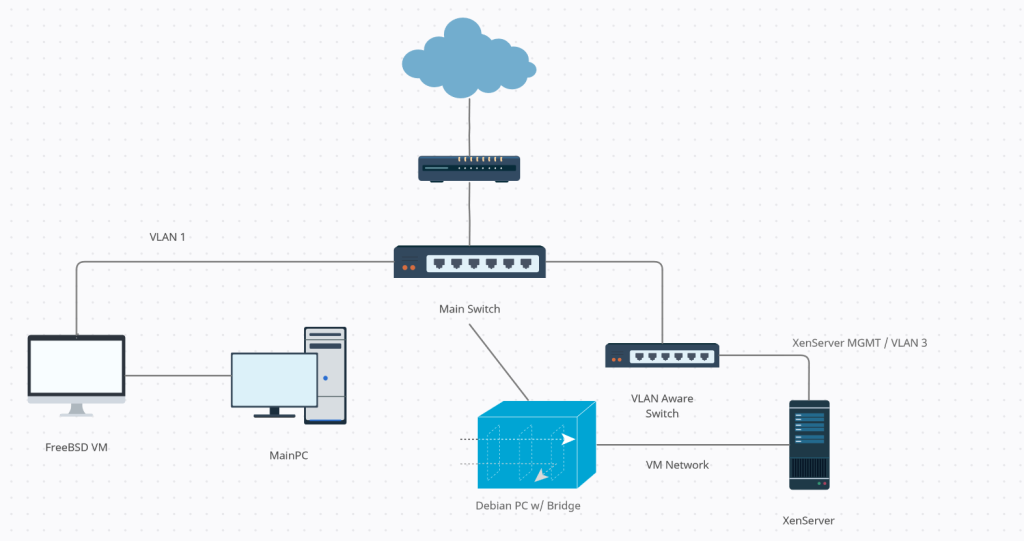
This was my network in 2021:
Home network, 2021
At the time, the setup centered around an EdgeRouter X, XenServer, a Debian PC acting as a network tap, a FreeBSD VM, VLANs, and a dedicated malware analysis network. It was already much more complicated than a normal home network, but compared to what it looks like now, it was fairly simple.
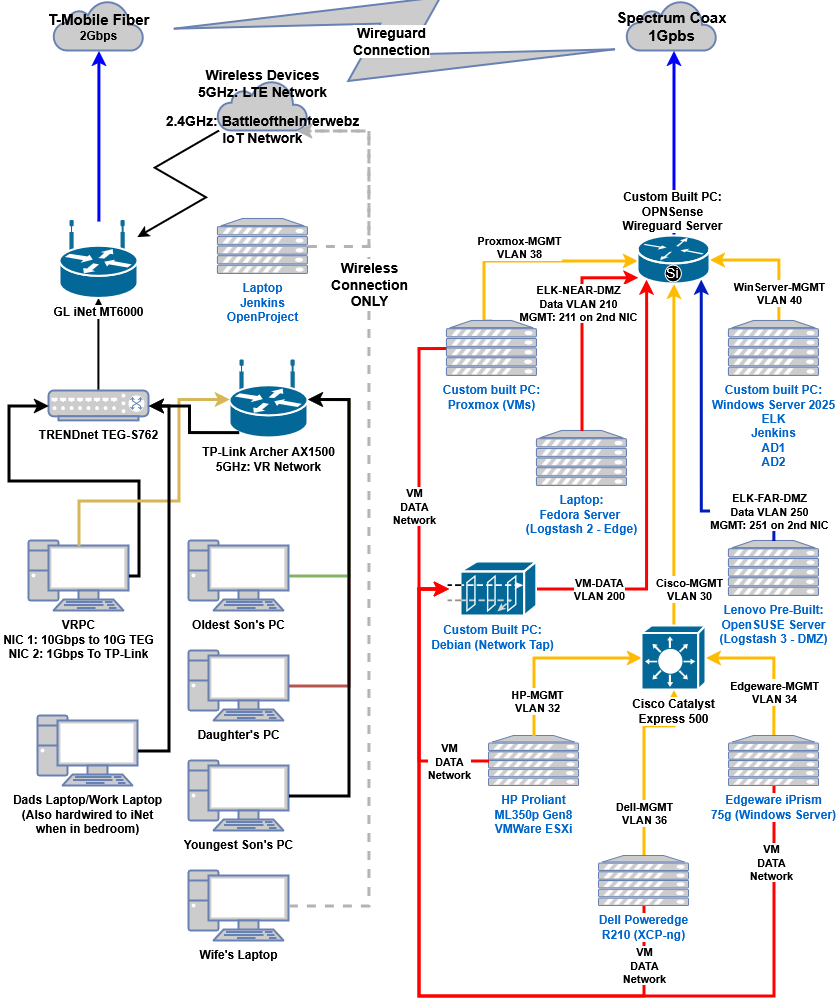
This is the network today:
Home network, 2026
There are now two separate Internet connections. The normal home network uses 2 Gbps fiber, while the lab has its own 1 Gbps coax connection. The lab side now includes OPNsense, Proxmox, multiple management and data VLANs, Windows Server, dedicated Logstash systems, a Debian network tap, Cisco switching, and several separate management networks.
The home network has expanded too, with dedicated wireless networks, an isolated IoT network, a separate VR network, WireGuard connectivity, and a 10 Gbps connection to my main desktop.
Looking back at the 2021 diagram, I remember thinking that setup was pretty elaborate.
Apparently, Linux’s favorite file sharing service can also double as an Active Directory Domain Controller. I’ve taken two Linux classes and was even a Linux Administrator for many months, and I had no idea this was possible. I stumbled upon this fact because I am looking for a centralized way to manage my user accounts across my entire home lab network.
Since I am using my free AWS Windows server for this site, I had no choice but to find an LDAP server implementation on Linux since AWS gives you a free Windows and Linux server. I spent a good bit of time looking at OpenLDAP, but that will not work since Windows cannot join an OpenLDAP domain. So back to the drawing board I go. I briefly looked at pGINA, but that looks like it hasn’t been updated in almost a decade. Finally, I stumble upon……
Samba.
What? Isn’t that just a file-sharing service???
Apparently not.
Part 1: Pre-Installation
I fire up a RHEL instance within AWS’s EC2, and I get port 389 configured from Windows <-> Linux. I then follow the pre-install instructions on Samba’s site. To set up EPEL on AWS’s RHEL, you need to run the following commands:
I have added flex, Bison, dbus-devel, and python3-markdown because Samba’s configure command requires them. We will get to this in a moment.
Now we will need to set a hostname and change our /etc/hosts file. First, to change your hostname, run:
sudo hostnamectl set-hostname yourhostname
Next, get your IP address using:
ip addr show
Then add your hostname and IP address to /etc/hosts using:
sudo vi /etc/hosts
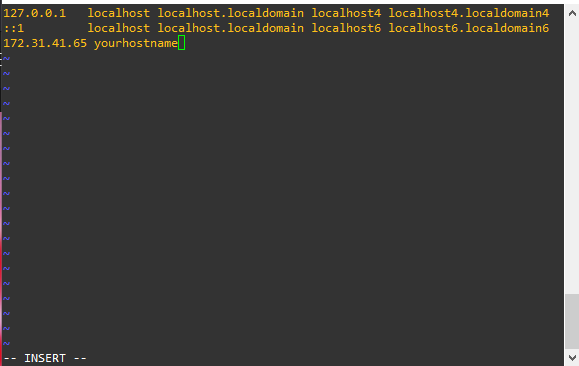
Press the “i” key to enter Insert mode, then use your arrow keys to navigate to the end of the file. Press enter, and add your IP address and new hostname like so:
Your hosts file may make the localhost lines different.
Finally, exit insert mode with Ctrl+C, then type Shift+; (to enter : ), press x, and hit enter. This will save your new hosts change. After making your change, log out and log back in.
Part 2: The Install
If you look on the Distribution-specific Package Installation page, it explicitly states that installing Samba from the repository does not support Active Directory. We can either jettison this RHEL install and move everything to Ubuntu or build from source. Building any software from source is always a challenge, and well, that’s why we’re both here!
First, grab the most up-to-date tar.gz installation files (the most up-to-date version as of this writing is 4.15.2). In my case, it will be:
wget https://download.samba.org/pub/samba/stable/samba-4.15.2.tar.gz && tar -zxf samba-4.15.2.tar.gz && cd samba-4.15.2 && ./configure
The following command with download the tar.gz file, extract its contents, change the directory to the newly extracted folder, and run the ./configure command. For our purpose, we can leave the default configuration options alone. Once the configure command completes, you should get the following:
Success!
Next, run the make command. This will take some time. Once make finishes, you will see:
Another success!
Finally, run the sudo make install command. This will also take some time. Once the install finishes, you will see:
Final success!
Next up is creating the systemd file used to start and stop the Samba Active Directory Domain Controller automatically. Enter the following:
sudo vi /etc/systemd/system/samba-ad-dc.service
Like before, press “i” to enter insert mode, copy and paste the following:
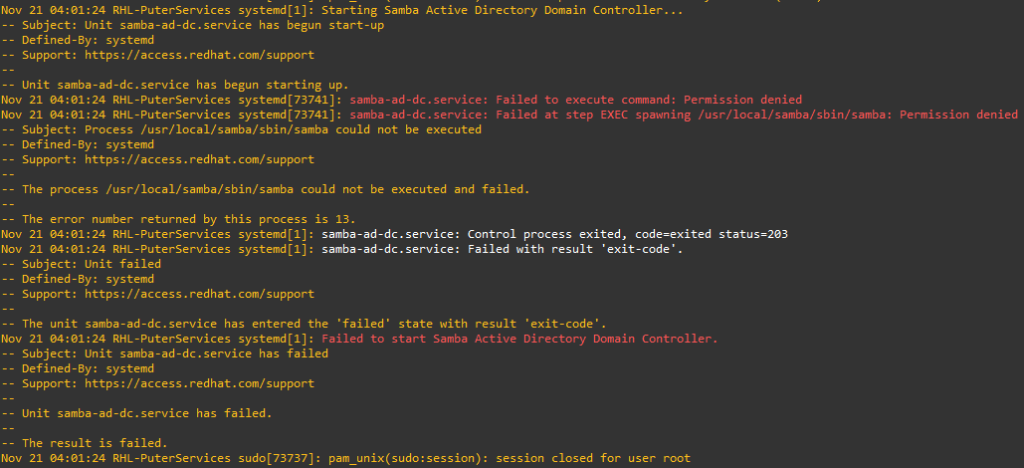
Ctrl+C, then type Shift+; (to enter : ), press x, and hit enter. If you try to start Samba now using systemctl start samba-ad-dc, it will fail with the following:
SELinux prevented Samba from running.
Before starting Samba, SELinux will need to be adjusted to allow Samba to run. Run the following command:
chcon -R -t bin_t /usr/local/samba/sbin/
The above command will tell SELinux that Samba is permitted.
Part 3: Post-Install Configuration
Before Samba can be started, we will need to configure it. Begin by running the following commands:
This will tell samba-tool to provision a domain using the interactive tool and allow RFC-2307. Without RFC-2307, non-Windows clients would be unable to authenticate with this server. The interactive tool will ask many questions, but you only need to provide the Realm (internal.domain.com) and the administrator password. THE ADMINISTRATOR PASSWORD MUST BE SECURE. The other settings can be left as default. Once you see the following, the tool is complete:
INFO: Samba-Tool is complete.
The last thing that is needed is the following command:
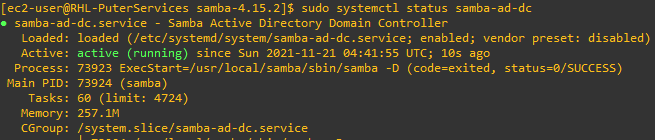
This command will move the Kerberos configuration file to the correct location, request systemctl to start samba-ad-dc, and output its status. If everything was completed successfully, you should see:
Perfection.
Part 4: Next Steps
Now that Samba’s Active Directory Domain Controller is running, we will need to test our configuration. If the tests are successful, we will need to deploy it to the other clients. That’s Part 2!